How to write a guide: photos, formatting, topics
Updated 18.11.2026 · Author: VikingsBase
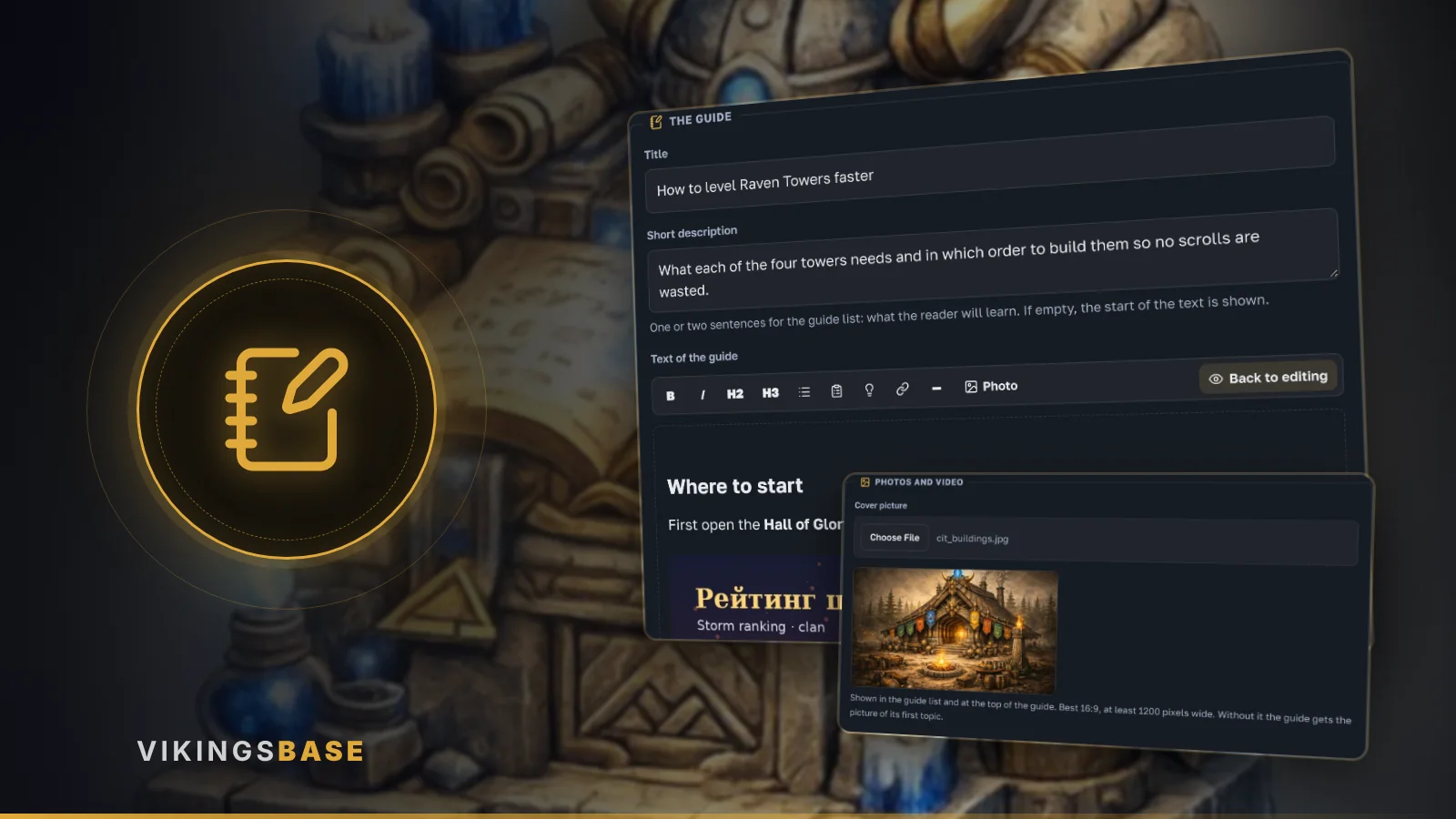
Any player can write a guide. No sign-in is needed: you fill in a form and the guide goes for review. Below are the steps, with screenshots of the form itself.
Where to write
Open «Guides» and press «Write a guide» at the bottom of the page. A form with a few blocks opens.
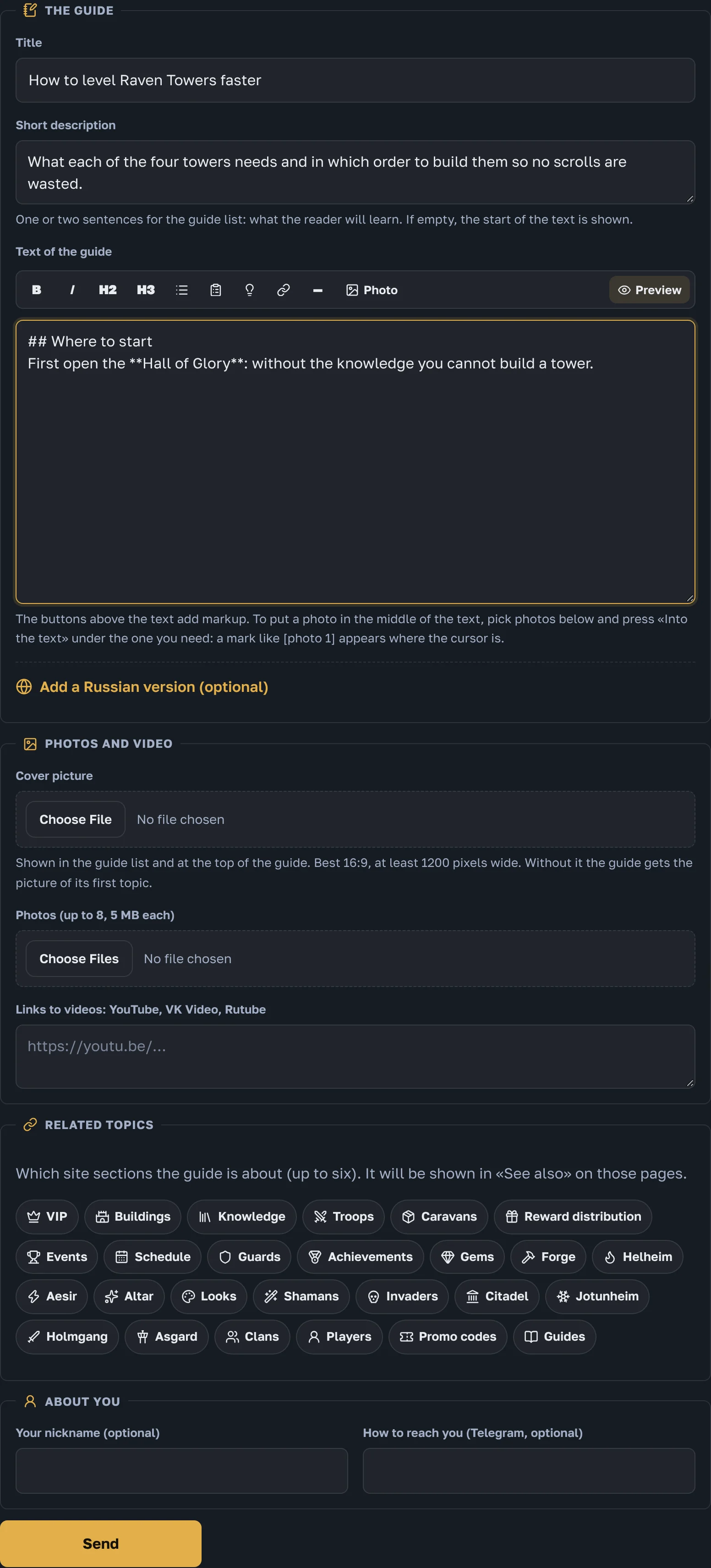
Title and text
The title says in a few words what the guide is about. Write the text in plain paragraphs: an empty line starts a new one.
Short description
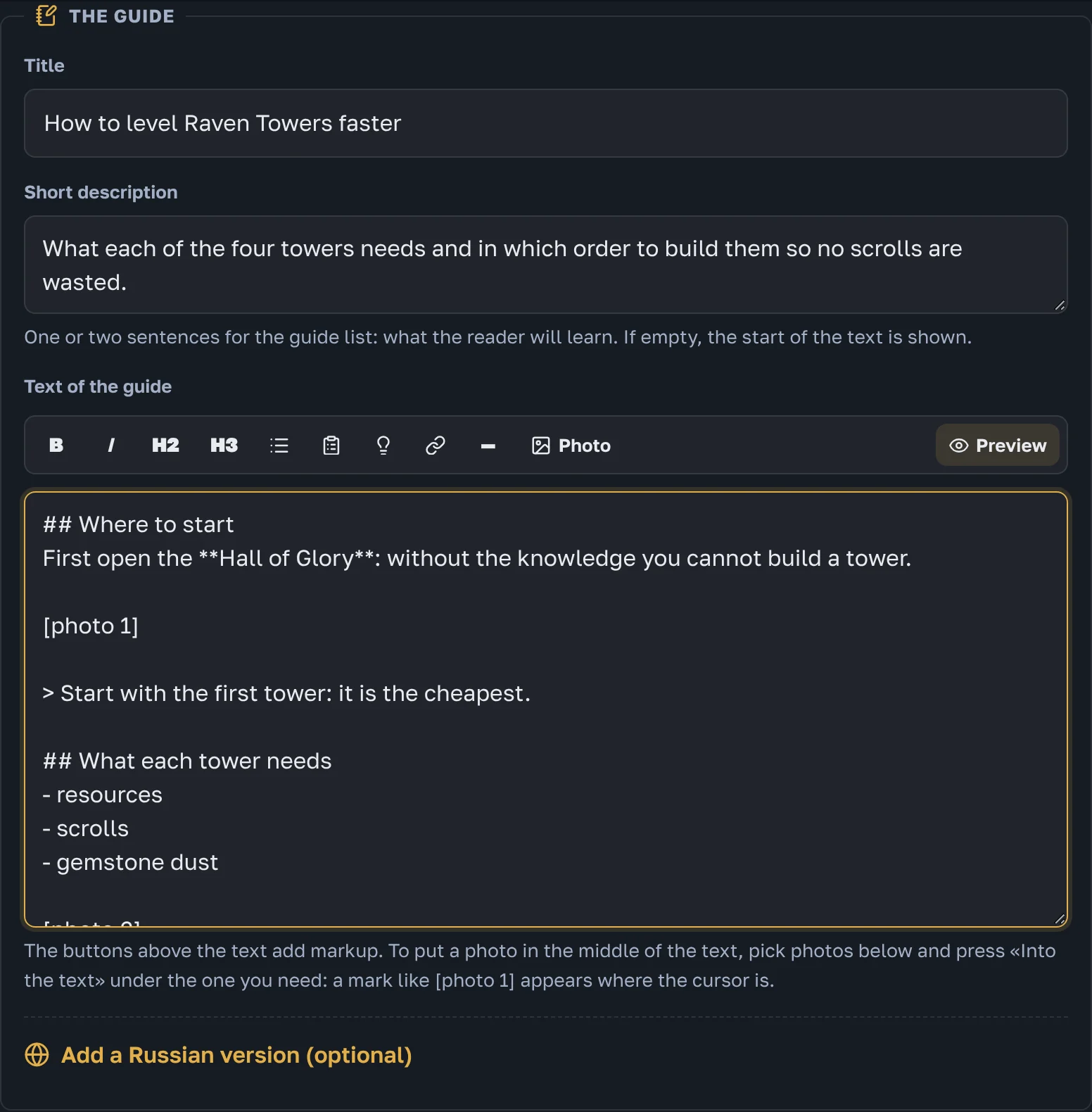
Under the title there is a «Short description» field: one or two sentences on what the reader will learn. It is shown in the guide list under the title. If you leave it empty, the start of the text is shown instead.
Formatting buttons
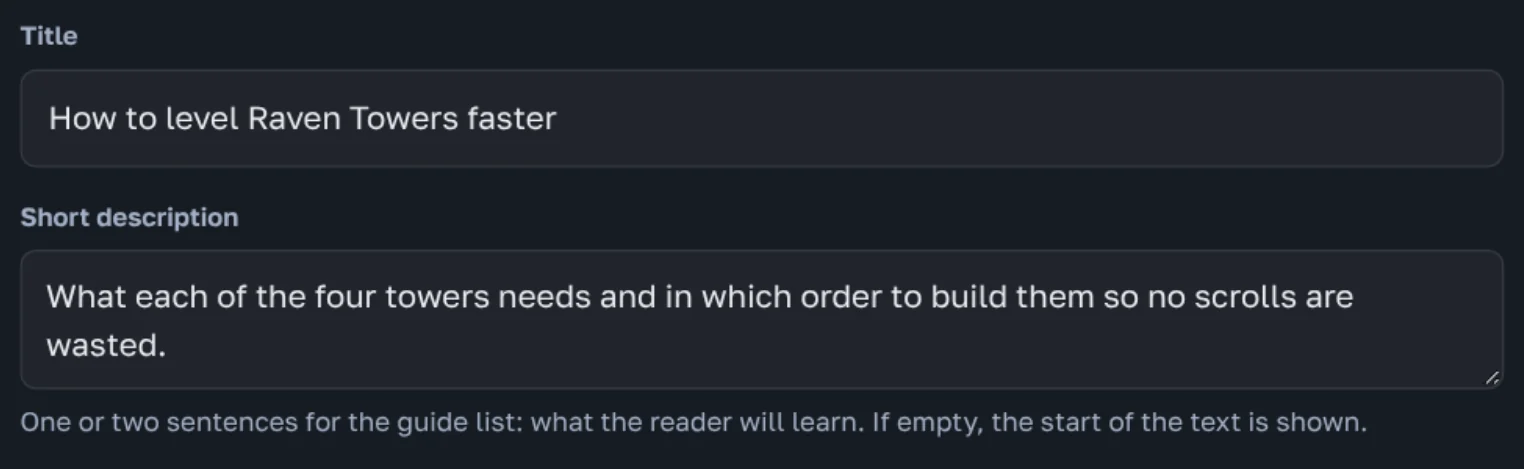
There is a toolbar above the text. Select some words and press a button: the markup is added for you.

- B is bold, I is italic
- H2 and H3 are a heading and a subheading
- a list and a numbered list
- the bulb is a tip in a coloured frame, like the one below
- a link and a divider
- «Photo» picks pictures and puts them right where the cursor is
You can also type the markup yourself: ## at the start of a line is a heading, a dash is a list item, two asterisks on each side of a word make it bold, and > is a tip.
Cover
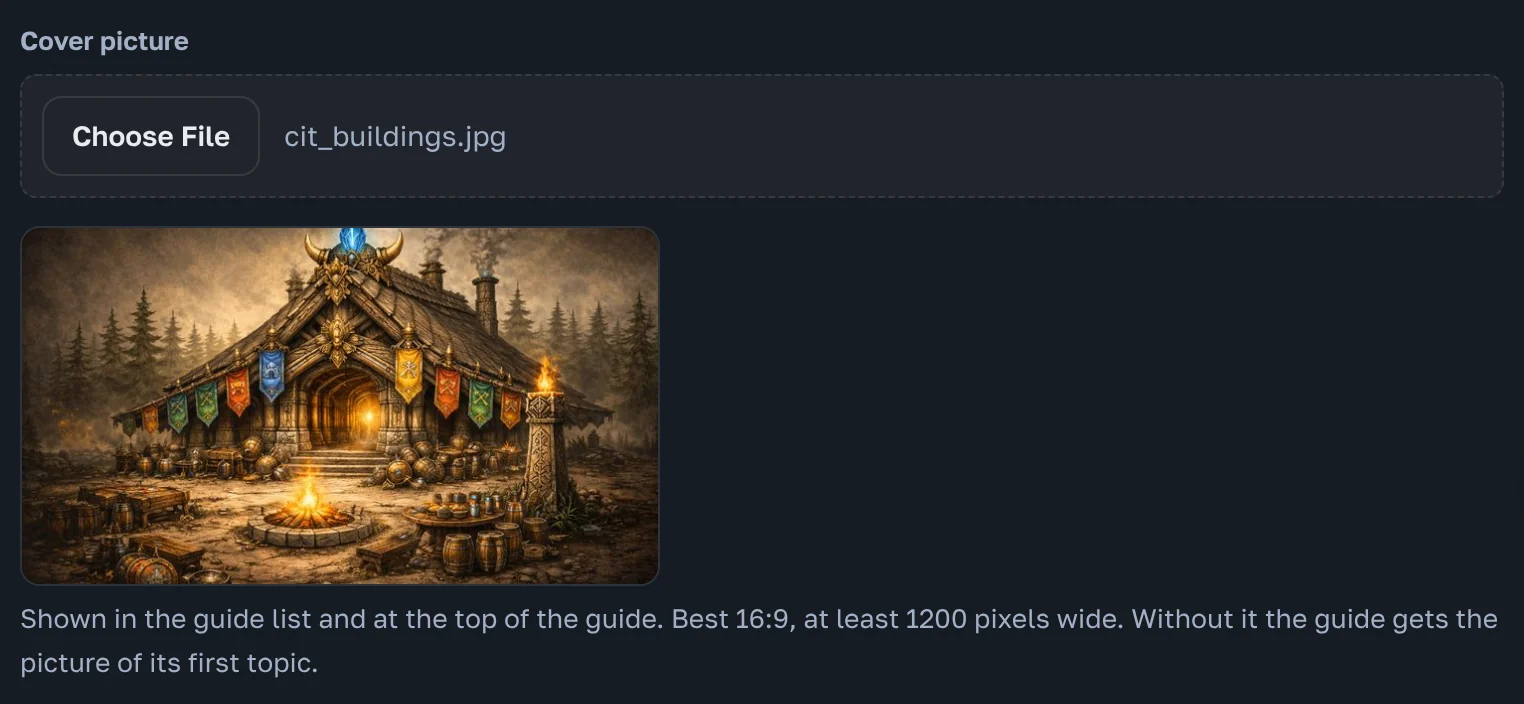
The cover is the picture the guide is shown with in the list and at the top of its page. Pick it in «Photos and video», the «Cover picture» field, and you will see how it fits right away. A wide 16:9 picture, at least 1200 pixels wide, works best. Without a cover the guide gets the picture of its first topic.
Photos inside the text
In «Photos and video» pick up to 8 pictures, 5 MB each. Each one gets a number and an «Into the text» button.
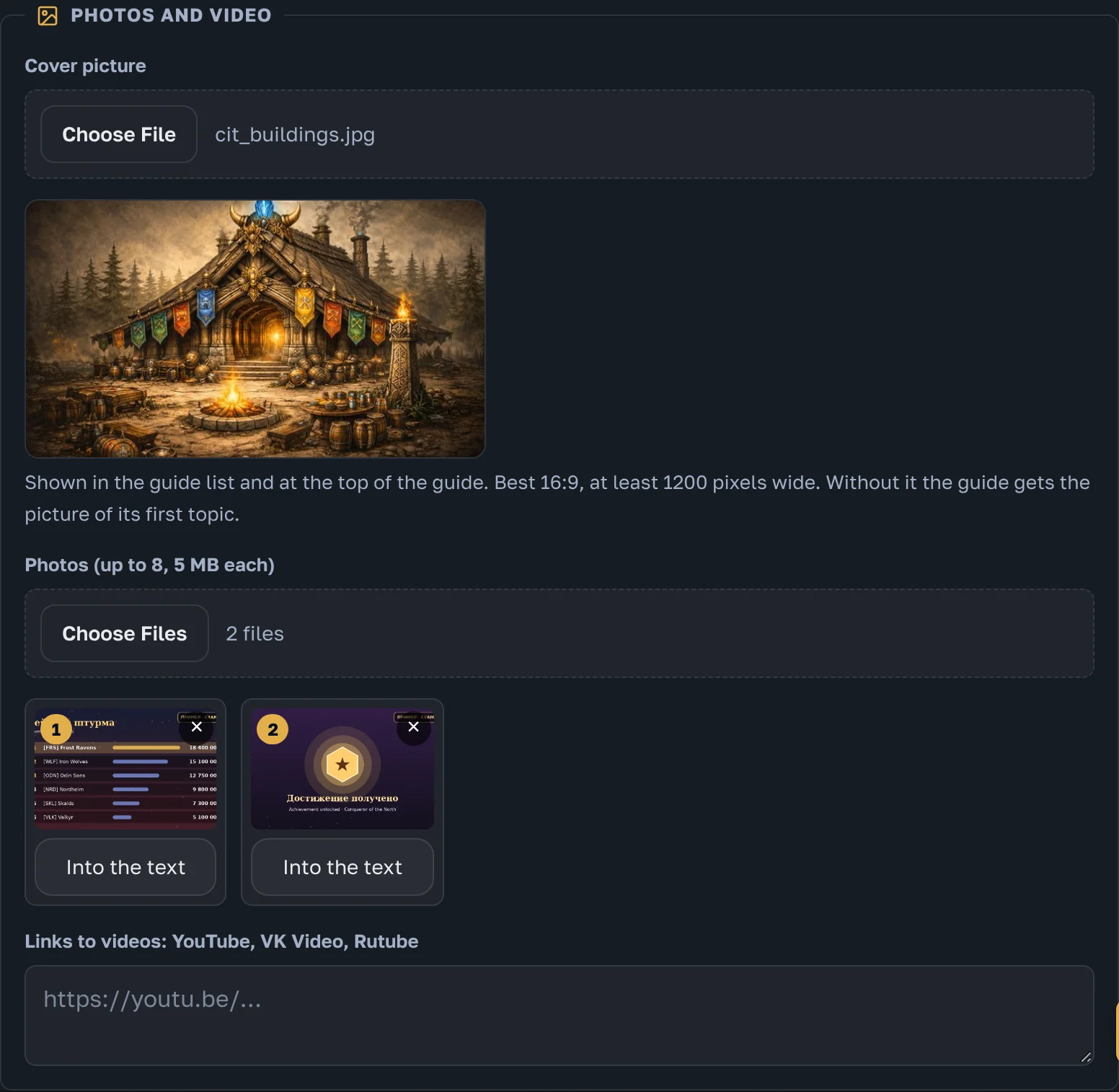
- Put the cursor where the picture should go.
- Press «Into the text» under that photo.
- A mark like [photo 1] appears in the text.
When you send the guide, each mark is replaced by its picture. Photos without a mark go to the end of the guide. The cross on a photo removes it, and the other marks in the text are renumbered for you.
Preview
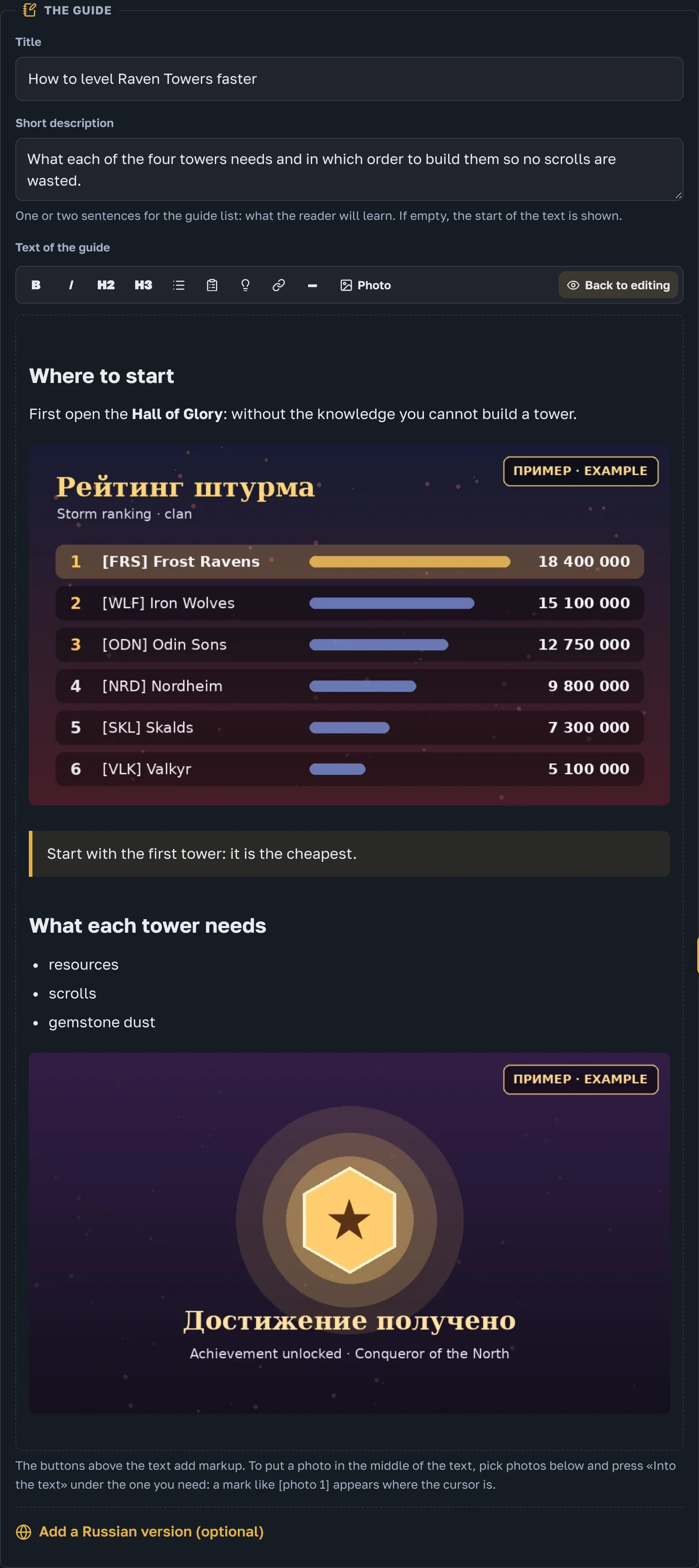
«Preview» shows the guide the way it will look on the site, with your photos. «Back to editing» returns to the text.
Related topics
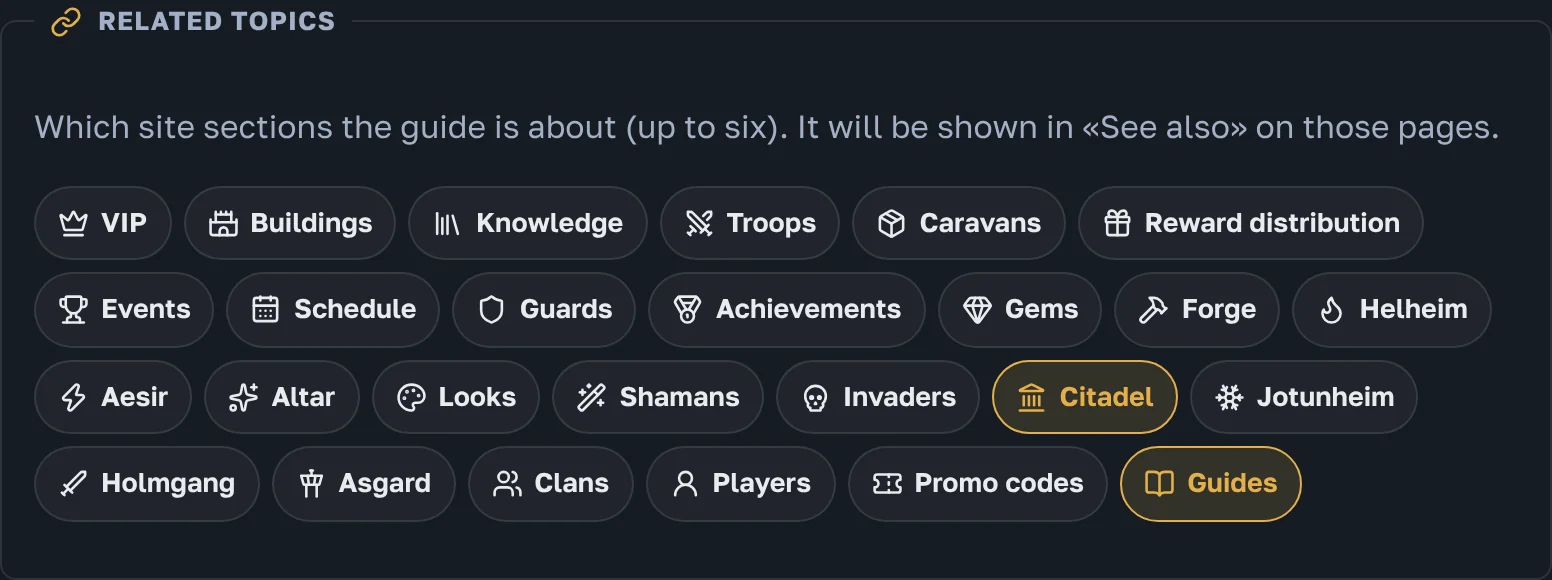
Tick the site sections the guide is about, up to six. The guide will be shown in «See also» on those pages, so people reading the section will find it.
Video, Russian version and contact
- Video links: YouTube, VK Video or Rutube, one per line. They become cards on the guide page.
- «Add a Russian version» is optional. With it, the guide also appears on the Russian site.
- The author name is shown under the guide. A click on the name shows all your guides, so write it the same way every time. Only the site owner sees the contact, in case something needs checking.
Click a picture in a guide to see it in full. It opens over the page, the arrows show the other pictures, and Esc closes it.
After sending
The guide goes for review and appears in the list once approved. The site owner may fix typos and formatting.
This guide was made with the same tools: headings, lists, tips and pictures inside the text.